LumaQuote › Android App Guide
LumaQuote Field for Android
Android Lighting Audit App Guide
Set up LumaQuote Field and run your first audit. Install the app on your Android tablet or phone, walk the building area by area and space by space, count fixtures, take photos, and have the audit waiting in LumaQuote on your computer.
On every plan · Works offline · Tablets and phones · Android 7 or later · Setup takes 3 minutes

On an iPad or iPhone? See the iPad and iPhone app guide → · What the lighting audit app does →
01
Before you start
- Have your LumaQuote account ready. The field app is included on every plan, Free included.
- Your app login is your LumaQuote login: the same email and password you use on lumaquote.com. There is no separate app password to set up.
- Signed up with Google? You have no LumaQuote password. On your computer, go to Settings, then iPad App, choose an app password and click Turn on iPad access. It covers Android too. Use that password in the app.
02
Install the app from Google Play (one time)
- Get the app. On your Android tablet or phone, open Google Play, search for LumaQuote Field, and tap Install.
- Open LQ Field. Open LQ Field from your home screen or app drawer. The icon is the green and black LQ logo.
- Sign in. Sign in with the same email and password you use on lumaquote.com. The first sign-in needs internet. After that, the app works with no signal.
- Take your first photo. Tap Camera on a space or a fixture line. Your camera opens. Take the photo and confirm it, and it is saved on that space or fixture.
Google Play LumaQuote Field
Tablets and phones
LumaQuote Field on Android phones
The same app runs on Android tablets and phones. Areas, spaces, fixture lines, controls and photos work the same way on both, so every step in this guide applies to either.
- One download from Google Play for tablets and phones.
- Sign in with the same LumaQuote email and password on every device. Audits sync between them, including iPads and iPhones.
- Works with no signal on a phone too. It uploads when you are back online.


03
Do an audit
Start with an area, add its spaces, then count the fixtures in each space. One line per fixture type. Everything saves as you type.
AStart the audit
- Tap + New audit.
- Enter the audit name, client, site and auditor, then tap Done.
- To change these later, tap the audit name at the top.
BSet up areas and spaces
- An area is a floor, a building or a wing. A space is a room inside it. Every audit starts with one area.
- Tap the area name to rename it and to pick one schedule and one voltage for every space in that area. New spaces start with them.
- Tap + Add space and name it, for example "Warehouse Floor".
- In the space, pick the Space type and add the ceiling height and space notes: lift needed, access, hazards.
- Take overview photos with Camera, or pick them from Library.
- + Add area starts the next floor or building. Copy area repeats its spaces and fixtures when floors are alike.

CAdd fixtures
- Tap + Add fixture to open the fixture sheet.
- Fixture type: the wattage fills in. Types already used in this audit show at the top, one tap to reuse. Not in the list? Pick Custom and type the name and watts.
- Fixture body and size, for example High Bay or a 2x4 troffer.
- Quantity: use − and +, or type the number.
- Schedule and voltage follow the space. Change them here only if this fixture is different.
- Condition, Location and Photos: the fixture, the ballast nameplate, the ceiling.
- + Next fixture adds the next line. Duplicate copies this one. Tap Done or press back to close.

DRecord controls (optional)
- Note the controls a space has today: wall switch, occupancy sensor, timer or none.
- Mark a likely upgrade if you see one. It is a note for the estimator, not a commitment in the proposal.
- Skip it when controls are not part of the job. The audit works the same without it.

ECount from the list
- Each fixture line has its own − and +. Tap them as you walk, or tap the number and type the count.
- The camera button on the line takes a photo of that fixture.
- Add again lists the fixture types you already used. One tap adds the same type to this space.
- The Android back button closes a sheet first, then takes you back to the audit list.
04
Syncing
The status pill at the top right of the app tells you where things stand. Tap it any time to sync right away.
Synced
Everything is uploaded and saved in your account.
Offline
You are fine. Keep working. It uploads when you have signal.
Syncing…
Uploading now. Photos can take a minute on a slow connection.

05
Get the audit on your computer
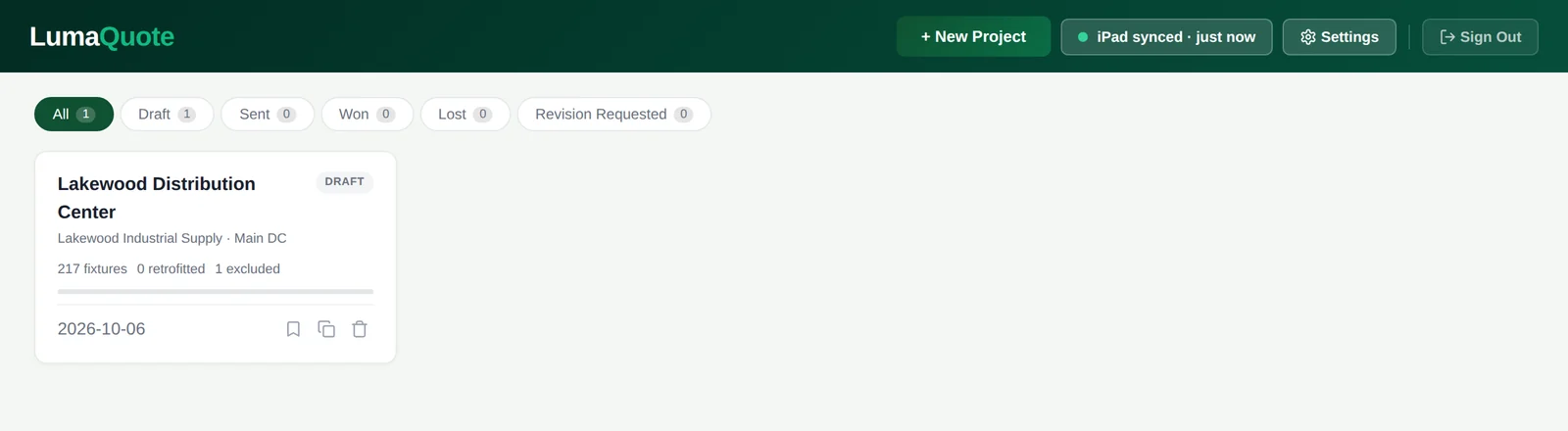
There is nothing to import by hand. Synced audits are waiting when you open LumaQuote.
AOpen your dashboard
- New and updated audits from the app come in automatically, as projects.
- The sync pill at the top shows when the last sync ran. Click it to sync right away.
- Changed the audit in the app later? It updates the next time you open the dashboard. Your desktop edits are kept.
BOpen the project
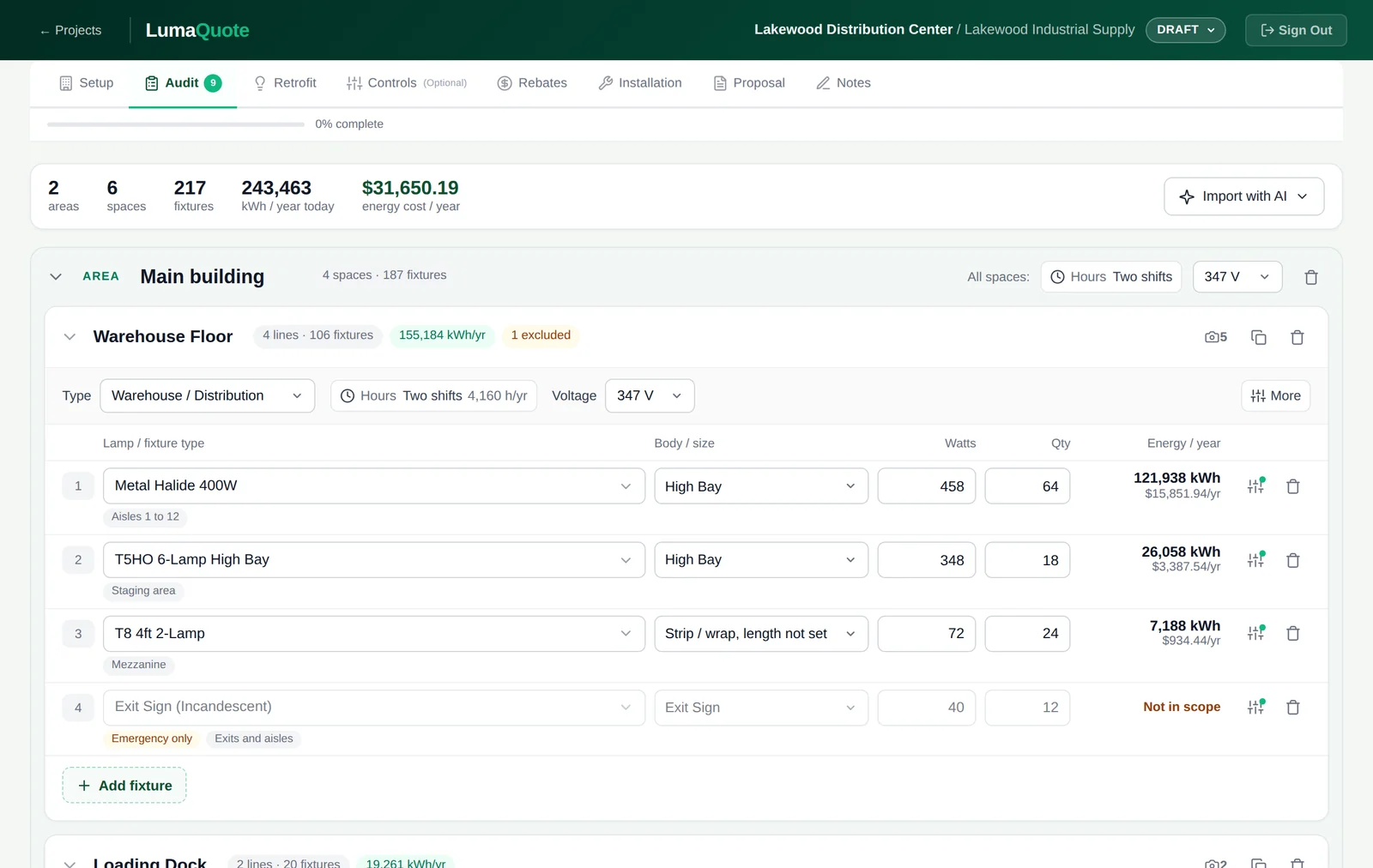
- The Audit tab has the same areas, spaces and fixtures you entered on site.
- Schedules, voltage, space notes, ceiling heights, mounting heights and existing controls come in with the fixtures.
- Then carry on as usual: Retrofit, Controls (optional), Rebates, Installation, Proposal.
Where the photos are
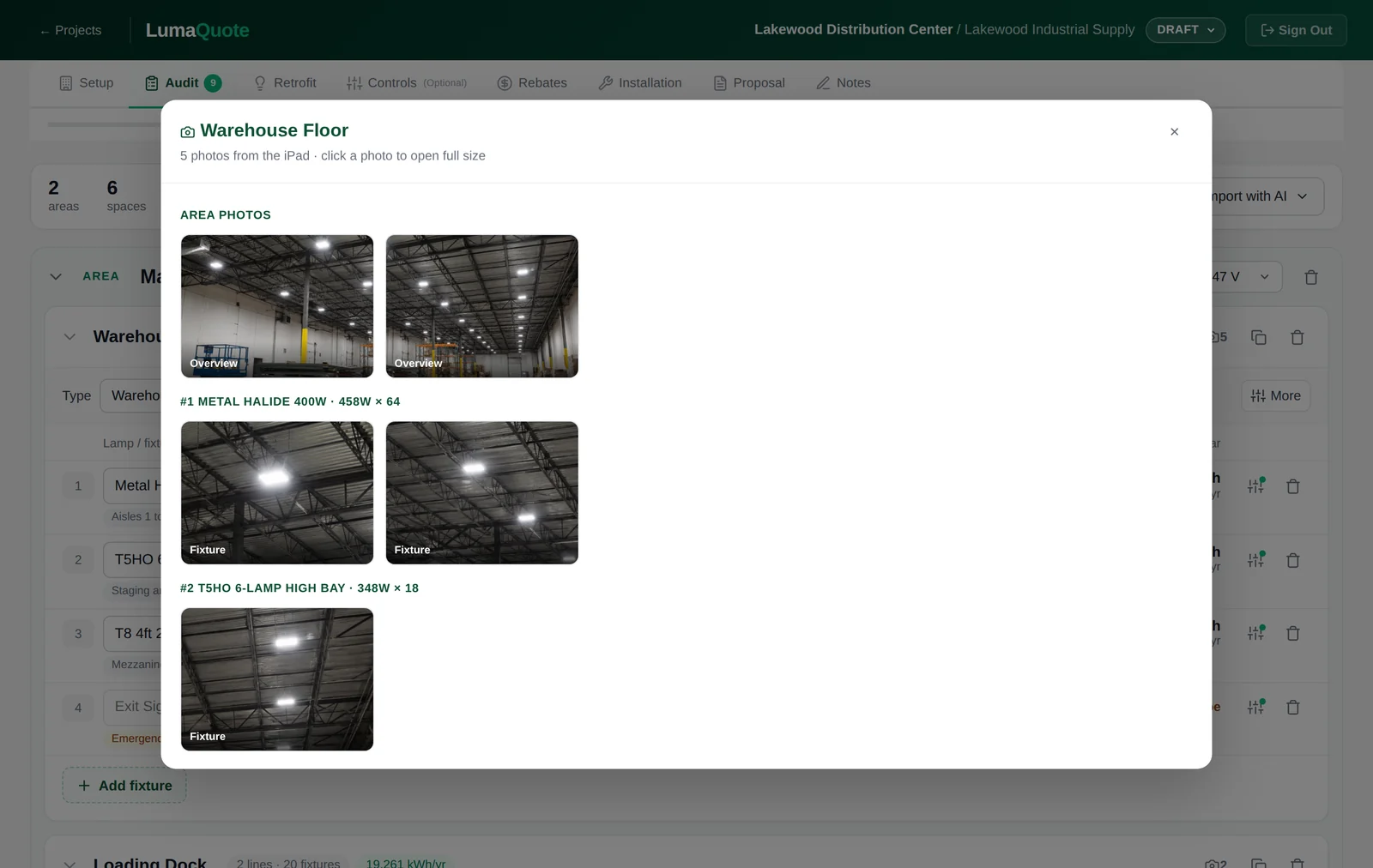
- The camera count on a space opens every photo for that space, grouped by fixture.
- Click any photo to open it full size.
06
Export and backup
In any audit, tap Export:
- Full package (ZIP): a spreadsheet plus every photo, in folders by space and fixture. This is also your backup.
- Spreadsheet only (CSV): opens in Excel. Quick to email.
- Tap Share / Save file, then pick where it goes: your files, a cloud drive or your email app.
- To bring a ZIP back in, tap Restore backup on the home screen.
FAQ
Android app questions.
Is the Android app included in my plan?
Yes. LumaQuote Field is included on every LumaQuote plan, on Android, iPad and iPhone. The Free plan covers 3 projects in total, and audits that come in from the app count toward those 3. Pro removes the limit.
Which Android devices does it run on?
Android tablets and phones with Android 7 or later. A tablet is best for large sites with many spaces. A phone works well for quick walk-throughs and small sites.
Which password do I use in the app?
The same email and password you use to sign in on lumaquote.com. You do not need a separate app password. If you signed up with Google, you have no LumaQuote password: set an app password in LumaQuote on your computer, under Settings, iPad App, and use that. The same setting covers Android.
Do I need internet on site?
No. Everything you enter and every photo you take is saved on the device first. The app uploads it when the device is back online. Only the very first sign-in on a new device needs a connection.
Can my team mix Android, iPad and iPhone?
Yes. It is the same app and the same account on every device. Sign in with the same email on an Android tablet and an iPad and your audits sync between them. If the same audit is changed on two devices, the changes are merged.
What does the Android back button do in the app?
It works the way you expect. It closes an open sheet or menu first, then takes you from an audit back to the audit list. On the audit list, it moves the app to the background instead of closing it, so uploads keep going.
The app restarted while the camera was open. Did I lose the photo?
Usually not. Android sometimes closes apps in the background while the camera is open, mostly on devices with little free memory. LumaQuote Field remembers where you were: when it opens again, it goes back to the same audit and space and saves the photo there. If a photo is missing, take it again.
What is the difference between an area and a space?
An area is a floor, a building or a wing. A space is a room or zone inside it, such as a warehouse floor, an office or a parking lot. Fixtures are counted per space. A small site can stay in one area.
Can I set the hours and voltage once for a whole floor?
Yes. Tap the area name, then pick a schedule and a voltage. They apply to every space in that area, and new spaces in the area start with them. You can still change a single space or a single fixture after.
Why does my audit say "Not synced yet"?
The app has not uploaded the latest changes. Connect to Wi-Fi or mobile data and tap the status pill at the top right to sync now. When it says Synced, everything is saved in your account.
How do I get the audit on my computer?
Open your LumaQuote dashboard. New and updated audits from the app come in automatically as projects. To sync right away, click the sync pill at the top of the dashboard.
I changed the audit in the app after it came in. Will I lose my desktop work?
No. The next time you open the dashboard, LumaQuote updates only what changed in the app. Edits you made on the desktop, and all retrofit, pricing and rebate work, are kept.
How do I keep a backup?
In any audit, tap Export and choose Full package (ZIP). It holds a spreadsheet and every photo, in folders by space and fixture. Save it to your files or a cloud drive, or send it by email. You can bring it back later with Restore backup on the home screen.
How much storage does the app need?
Very little. Photos are compressed before they are saved, so even a large site takes a small share of the device. A few GB free is plenty.
Can I uninstall the app and install it again?
Yes. Check that every audit says Synced first, because audits and photos that have not uploaded yet live only on that device. Then uninstall, install it again from Google Play and sign in. Your audits download again.
Need more than 3 projects?
The Android app is on every plan. Free covers 3 projects, including audits from the app. Pro removes the limit.
See plans and pricing Questions? Contact us
Pro: $99/month or $899/year · unlimited projects, all features, your logo
Google Play, the Google Play logo and Android are trademarks of Google LLC.