LumaQuote › Lighting Audit App
LumaQuote Field
Lighting Audit App for iPhone, iPad and Android
Record fixtures, quantities and photos on site. Work offline, sync your audit and continue estimating on your computer.
Start your first audit See how an audit works


Free plan · No credit card · Phone and tablet app included · Works offline


On site
Capture fixtures, quantities and photos by area
Walk the building the way you would on paper, one area and one room at a time. Everything you enter is one tap from where you are standing.
- Building areas and rooms. Floors, wings or buildings, with the spaces inside each one.
- Existing fixture types and quantities. One line per fixture type, counted with + and − as you walk.
- Wattage and operating assumptions. Wattage fills in from the fixture type. Hours and voltage are set once per area.
- Photos and site notes. The fixture, the nameplate, the ceiling, plus access, lift and hazard notes.
- Existing controls and possible upgrades. Record what is there today and flag likely opportunities for the estimator.

No signal
Work offline during site visits
- Before you arrive: install the app and sign in once with internet, at the office or in the parking lot.
- On site: record areas, fixtures, photos and notes with no connection. Everything saves on the device as you type.
- Back online: the app uploads the audit and its photos by itself. Tap the status pill to sync right away.
- Before the desktop: check that the audit says Synced. Then it is safe in your account.
Step-by-step setup: iPad and iPhone guide · Android guide

One example audit
How a lighting audit works in LumaQuote
Four steps, followed here with one example project: Lakewood Industrial Supply, Cleveland, Ohio, an 84-fixture warehouse, office and parking lot retrofit. The client is fictional; the numbers come from our sample proposal, and the screenshots show a demo project.
- 1
Create the audit
Add the project and organize its areas.
ExampleNew audit "Lakewood Industrial LED Retrofit" with two areas, Main Building and Mezzanine, and four spaces.

- 2
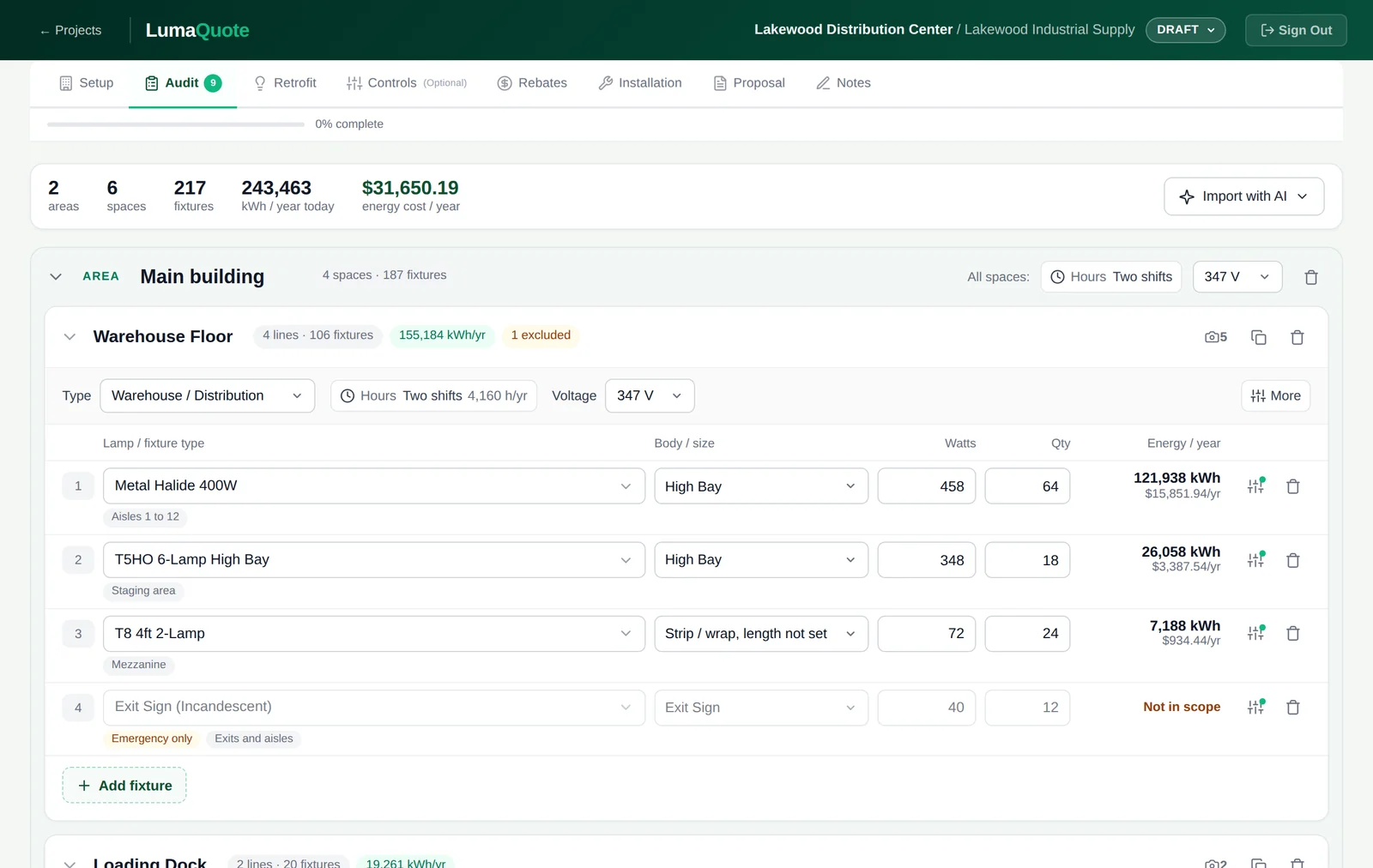
Record existing lighting
Enter fixtures, quantities, photos and notes.
ExampleWarehouse Floor: 24 flood metal halide 1000W, 8 metal halide 250W and 12 vapor tight 4ft 2-lamp fixtures, each with photos.

- 3
Sync the field data
Connect and confirm the audit is available.
Example84 fixtures in 4 spaces. The status pill reads Synced, so the audit is saved in the account.

- 4
Continue on desktop
Review the audit and prepare the retrofit estimate.
ExampleThe project opens on the computer with the same areas, spaces and 84 fixtures, ready for the retrofit.
Example audit after sync
Lakewood Industrial LED Retrofit
Lakewood Industrial Supply, Cleveland, Ohio
Synced
2 Areas
4 Spaces
84 Fixtures
Existing lighting energy 185,385 kWh/yr
Main Building 78 fixtures
Warehouse Floor169,782 kWh/yr today
44
24 × flood metal halide 1000W · 8 × metal halide 250W · 12 × vapor tight 4ft 2-lamp
Office & Lunchroom4,942 kWh/yr today
24
Exterior & Parking9,417 kWh/yr today
10
Mezzanine 6 fixtures
Storage Room1,244 kWh/yr today
6
Back at the office
Turn field data into a retrofit estimate
The audit arrives as a project in LumaQuote's lighting retrofit software. Nothing is typed twice.
lumaquote.com · Audit
- 1
Review the audit
Fixtures, quantities, hours and photos arrive from the app. Fix anything before pricing.
84 fixtures in 4 spaces - 2
Choose LED replacements
One LED replacement per existing fixture line, from your own product list.
Flood metal halide 1000W → LED high bay 200W - 3
Price products and installation
Your product prices, labour or a fixed installation price, and tax.
LED products $10,070.26 · installation $6,200.00 - 4
Add controls and rebates (optional)
Shown separately from the LED case, so the client sees each payback.
Not used here: LED only, no rebate - 5
Export the proposal
A branded PDF or Word proposal with savings, cash flow and assumptions.
0.7-year payback, 142,247 kWh saved per year
NL
Lighting retrofit proposal Lakewood Industrial LED Retrofit
Annual savings $23,938.02
Simple payback 0.7 yrs
Total project cost $17,075.88
Energy saved 142,247 kWh
Annual savings by category
Energy $19,630.08
Demand $2,454.12
Maintenance $1,853.82
Investment
LED products, 84 fixtures $10,070.26
Installation, fixed price $6,200.00
Sales tax, 8% on materials $805.62
Total investment $17,075.88
Devices
Use your phone or tablet
One app, one account, on iPhone, iPad and Android. A tablet is easiest for large sites; a phone is quick for walk-throughs. Audits sync between devices, so a team can mix them.
Device · Requirements · Supporting guide
iPhone and iPad iOS or iPadOS 15 or later, from the App Store iPad and iPhone App Guide →
Android phones and tablets Android 7 or later, from Google Play Android App Guide →
Try the lighting audit app with your next project
The Free plan covers 3 complete projects with no credit card, and the phone and tablet app is included: offline audits, photos, syncing and the full desktop workflow to a finished proposal.
Start your first audit View pricing

FAQ
Lighting audit app FAQs
Does the lighting audit app work offline?
Yes. LumaQuote Field saves every fixture, quantity, photo and note on the device first, so you can audit basements, parking garages and plants with no signal. It uploads the audit when the device is back online. Only the first sign-in on a new device needs internet.
Is it available for Android phones and tablets?
Yes. LumaQuote Field is on Google Play for Android tablets and phones with Android 7 or later, and on the App Store for iPad and iPhone with iOS or iPadOS 15 or later. It is the same app and the same account on every device.
Can I use the same account on the app and website?
Yes. Sign in to the app with the same email and password you use on lumaquote.com. If you signed up with Google, set an app password in LumaQuote on your computer, under Settings, iPad App, and use that in the app.
Is the mobile app included in the free plan?
Yes. The app is included on every plan. The Free plan covers 3 complete projects, including audits that come in from the app, with no credit card. Pro removes the limit.
Can I add photos and notes during the audit?
Yes. Take photos with the camera or pick them from the library, on a space or on a fixture line: the fixture, the ballast nameplate, the ceiling. Each space has notes for access, lift needs and hazards, and each fixture has a condition and a location.
How do I continue working with my audit on desktop?
Open your LumaQuote dashboard on a computer. Synced audits come in automatically as projects, with the same areas, spaces, fixtures, hours and photos. From there you add LED replacements, pricing, installation, optional controls and rebates, then export the proposal.
Apple, the Apple logo, iPad and iPhone are trademarks of Apple Inc. App Store is a service mark of Apple Inc. Google Play, the Google Play logo and Android are trademarks of Google LLC.